Contact me on my email submission form for queries about
any of the following software. None of these programs install anything to your PC - they
do not write anything to your registry (with the obvious exception of MJ Registry Watcher) and
they are all self-contained .EXE files - you simply make an installation directory for them,
and unzip them into, and run them from there. They were all developed with Borland C++ Builder
Professional, and they are free of charge. I am also listed on
Softpedia.com.
MJ Registry Watcher - Version 1.2.8.9 - Last Update 30/10/2024 MJ Emails - Last Update 12/4/2026 MJ News Reader - Last Update 25/9/2025 Maths Penknife - Last Update 25/9/2025 Grapher - Last Update 25/9/2025 MJ Player - Last Update 11/4/2026 MJ Zoomer - Last Update 1/6/2026 MJ Browser - Last Update 25/9/2025
To get the best out of MJ Browser, MJ Player and MJ Emails, you should use admin rights to
install the mjbrow_raisever.reg file into the registry. This registry file is in each of the zip files,
and elevates the Internet Explorer DLLs used by these programs from version 7 to version 11.
** Latest Features : Service Mode, Process Launch Monitoring, DLL Injection Detection, Emailing of Alerts, Quarantine, Registry Backup **
** Latest Fixes : Circular registry entries now handled without going into an infinite loop, Windows 11 support, Tray icon colour when loading **
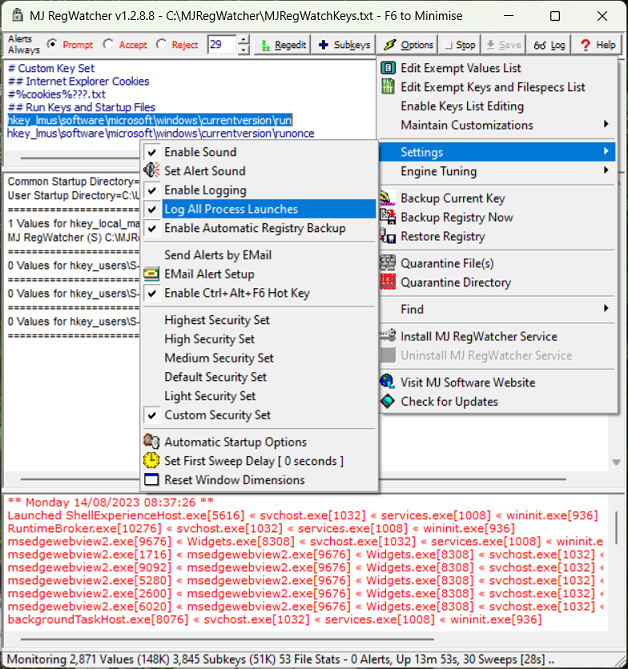
MJ Registry Watcher is a simple registry, file and directory hooker/poller, that safeguards the
most important startup files, registry keys and values, and other more exotic registry
locations commonly attacked by trojans. It has very low resource usage, and is set to poll
every 30 seconds by default, although you can adjust this to anywhere between 0 and 9999. A
configuration file stores all your settings for future use. MJRW not only polls the system, but
it also hooks it, so that most changes to keys, files and directories are reported
instantaneously. Key deletions are still caught by the polling loop though, since they cannot
be hooked. Exactly which keys and files are protected can be completely configured by the user,
although the sets I supply with MJRW will cover most standard PCs.
There is an additional automatic registry backup system that takes a snapshot of the entire
registry about every 28 days and stores it in the directory MJRegBackup. The filename is of the
form MJRegBackup_yyyymmdd.reg where yyyy is the year, mm is the month and dd is the day. The
last 15 snapshots are kept. They can be restored from a menu option : this can be used in Safe
Mode as administrator to rescue a non-booting PC. It should only be used as a last resort : it
saved my PC when I accidentally knocked out the video drivers during an over-zealous session in
the registry, cleaning out "LogMeIn"!
To install it, extract the files with pathnames, and you'll have a self-contained .exe
file with a small help text file, the keys and files lists, alert sounds, and a couple of
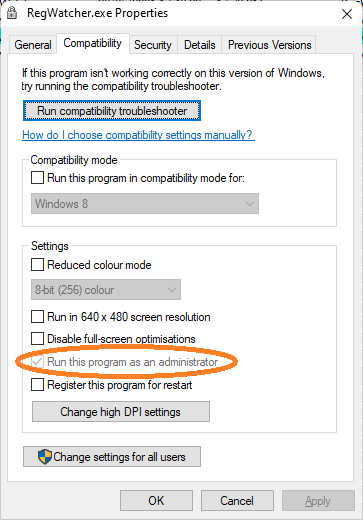
exclusion files in the MJRegWatcher directory. Set the properties for RegWatcher.exe to run it
as administrator, so that it can interface to the registry properly. It may run in Accept mode
without this step. To do this, go to the RegWatcher.exe file in Explorer, right-click to
Properties, and go to the Compatibility tab. Check the admin box. Whenever the PC is restarted,
you may have to OK MJRW to start with admin rights. Unless you disable UAC, the only way round
this is to use the task scheduler to launch MJRW with administrator rights and set it to
run at log on.
Launch RegWatcher.exe and then, use the Options, Settings, Automatic
Startup Options screen to install it either just for the current user, or, on Windows 11, for all users.
From this screen, you can also choose which key set to start it up with, or you can
remove the autostart key with the uninstall option.
There is also a service mode which is documented in the help file as follows :-
RUNNING MJ REGISTRY WATCHER AS A SERVICE
You will need administrator access rights to set up the MJ RegWatcher Service. You can use the
item under the Options menu to "Install MJ RegWatcher Service". REMEMBER TO UNINSTALL THE
INTERACTIVE MJ REGISTRY WATCHER (using Options, Settings, Automatic Startup Options or
disabling the scheduled task or Startup menu item) before you start using the service since
they cannot be run simultaneously. Once interactive MJRW is uninstalled, and the service has
been installed, you can start the service by running services.msc (or Administrative Tools,
Services from Windows) and going to the entry "MJ RegWatcher Service Stub" and starting it.
Once running, it will continue to run until the PC is shutdown, surviving logins and logouts,
and automatically starting up when the PC is started (and before anyone logs in). If someone
tries to terminate it without stopping the service stub, it will be re-launched automatically.
To remove the service, you have to stop the service running using services.msc (or Windows
service manager with Administrative Tools, Services). Navigate to "MJ RegWatcher Service
Stub" and stop it. Then launch interactive MJ Registry Watcher (by running RegWatcher.exe from
the installation directory) and choose "Uninstall MJ RegWatcher Service" from the Options
menu. REMEMBER TO INSTALL THE INTERACTIVE MJ REGISTRY WATCHER (using Options, Settings,
Automatic Startup Options or enabling/creating the scheduled task or Startup menu item) if you
want MJ Registry Watcher interactive mode to start up automatically when someone logs in.
The service has some important differences from the interactive mode :-
Only Accept and Reject modes are supported. Prompt mode defaults to and sets Accept mode.
There is no tray icon or visible application interface. It runs invisibly.
Keys and filespecs prefixed with $ to always prompt, will instead Accept or Reject depending on which mode is set.
The configuration of the service is taken from that used by the normal interactive configuration.
Only one instance of the service can be run at a time, and it cannot be run at the same time as an interactive session.
To be informed about alerts while the service is running, you can :-
a) Run the application mjrwmon.exe from the installation directory to watch the service
b) Use the alert sound set in interactive mode
c) Use the email settings set in interactive mode
d) Keep a view open and refreshed on the log file mjregwatchkeys.log
If a trojan attempts to change your startup settings, you will be alerted, and you can prevent
any changes being made. You can also configure MJRW to email the alert details to, for
example, an administrator. It is fully configurable as to what keys and files are monitored,
so, if you have a vested interest in protecting your file association for the mailto protocol
(your default emailer), so that your preferred app loads them, and something else is trying
very hard to undermine this association (Outlook for example), this will popup, offering to
stop a new association attempt, after Outlook had loaded, say. The key that stores this
association is hkey_lmus\software\classes\mailto\shell\open\command, and you will find
that all such keys are covered by the wildcard key hkey_lmus\software\classes\???\shell\???\command.
This means that all your file associations are protected. All the system files are also
monitored, including system dlls, executables and driver files. If there is a change to any
of these files, an alert is recorded as to what files have changed and you may be optionally
informed with an on-screen alert. However, changes to the files cannot be undone.
It assumes write access and directory create rights for the path the .exe file sits in (ie.
wherever you installed it). The default set of keys and files should ensure that nothing gets
run at startup without you knowing about it, and important boot up files don't get changed
behind your back. When monitoring, keys are opened in Read-Only mode, and the application only
needs Write Registry access when it has detected a change. It keeps a log of any suspect
activity, and displays any such information for the current session in the bottom panel. A log
file has this appended to it and can be viewed by pressing the Log button. The file keeps a
complete history of alerts.
You can also visit a Wilders
Security forum thread dedicated to the formative years of this application. My moniker is
Graphic Equaliser. The thread started November 13th 2004 and finished on June 29th 2010.
The default set of keys was chosen to balance security against intrusiveness. However, you can
experiment by selecting different security levels on the Options menu, and see the impact on
PC performance. The higher you set it, the better the coverage, and also, the more warnings
you'll get (especially with the openwithlist keys monitored). This list is based on some
invaluable work done by Hojtsy documented in
Hojtsy's compiled
list of the security hotspots in the registry. It also has stuff from the
Gladiator AV Forum,
Silent Runners' Launch Points List and
Creer's List.
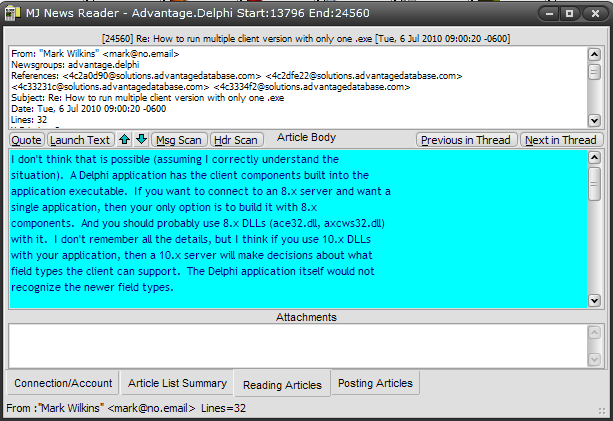
is a simple news reader with the added advantage that you don't need to set up accounts, and it
writes nothing to your hard disk except for a couple of small text configuration files, which
simply list your preferred news servers and your identity when sending replies. This simple
.exe file will allow browsing of, and, usually, postings to newsgroups. Searching and thread
traversal are catered for with a unique interface design. Both headers and message bodies can
be searched for wildcarded text or even regular expressions (prefix with mjre: to announce a
regular expression match). The Message header "References" is maintained when replying to
threads. It is an adaptation and enhancement of the
Netmasters Fastnet news reader demo program.
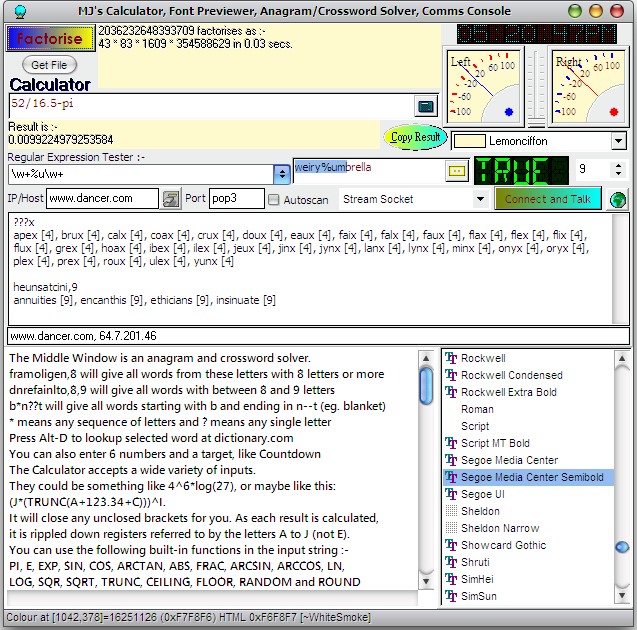
is a utilities program-gone-mad. It can list all legal WAVEFORMATEX control blocks for the PC
it is running on (right-click the little globe button on the right-hand side of the window to
activate report procedure), and do TCP/IP connections to any port and ip address, if allowed.
It can do DNS and Mailbox (MX) lookups on any host or IP address. You can "talk" to your POP3
server if you know the POP3 protocol, for example. Give it a URL and it will get whatever is
there, into a file on your PC with the same name, but in the directory this program runs in. It
factorises numbers, has a calculator, VU meters for the currently-selected input source, and a
bonkers colour selector. Some of the functions are only knowable from reading the pop-up hints
on certain controls. For example, there is an NIC information getter, but I'll leave that for
you to find. The Middle Window is an anagram and crossword solver, and also does the "Numbers
Game" in Channel 4's Countdown (you enter 6 numbers and a target, separated by spaces and
press Enter). It is also useful in Scrabble games.
framoligen,s will give all words from these letters for Scrabble
framoligen,8 will give all words from these letters with 8 letters or more
dnrefainlto,8,9 will give all words with between 8 and 9 letters
b*n??t will give all words starting with b and ending in n--t (eg. blanket)
j ep,4 will give jape, jeep, and jupe
4 6 8 3 7 2 275 might give 3+4*(8*7+2*6) = 275 or 3+2*8*(7+6+4) = 275
* means any sequence of letters and ? means any single letter
Press Alt-D to lookup selected word in the dictionary, Ctrl+F to search the text, and F3 to find again.
Enjoy!
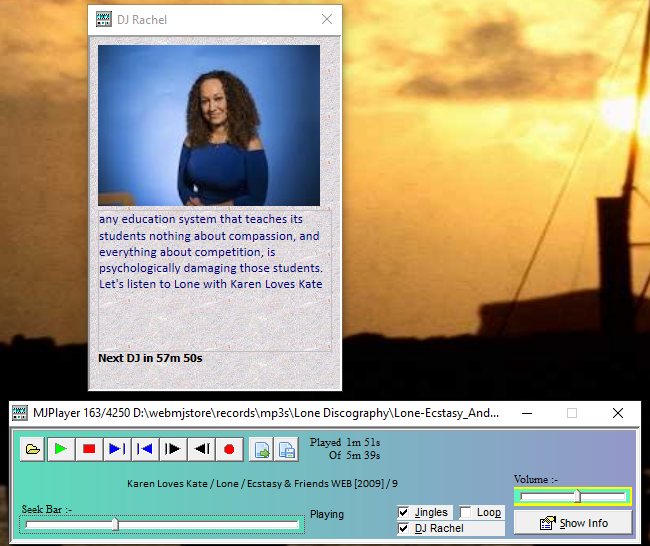
is a lean and mean media player. Simply download the zip file, and "extract with paths" into a
directory of your choice. Then simply launch the file "mjplayer.exe" from the directory you chose.
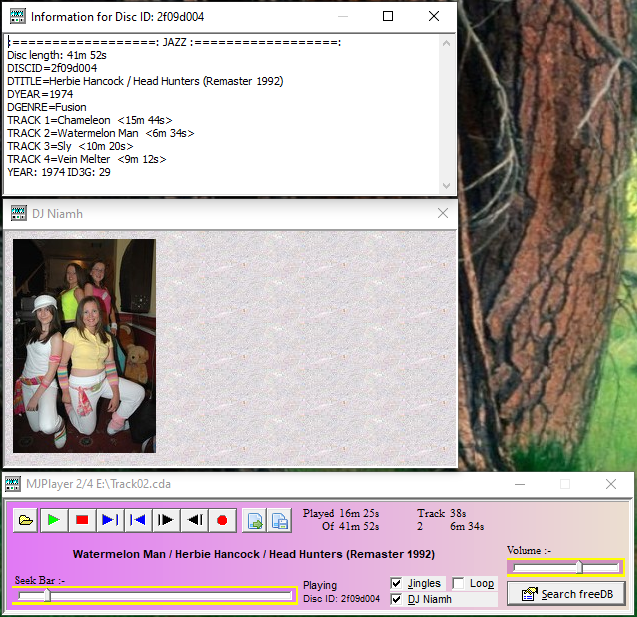
It can play CDs and look up the CD information from freedb.org. It has very low resource usage.
When playing MP3 files, it will display the artist, title, album, year and track number in the
centre of the player window, if these exist in the tag for the MP3 file. You can also easily
launch the Windows properties information for any file it is playing.
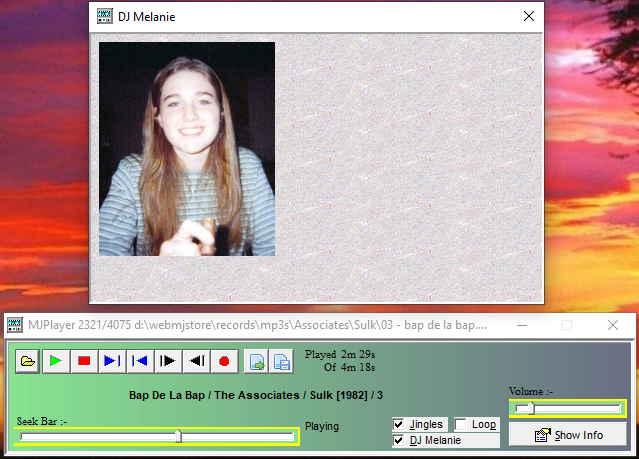
It can optionally introduce each song using the speech engine in Windows XP and above, by
checking the "DJ" checkbox. The introductions are already configured with the supplied text file,
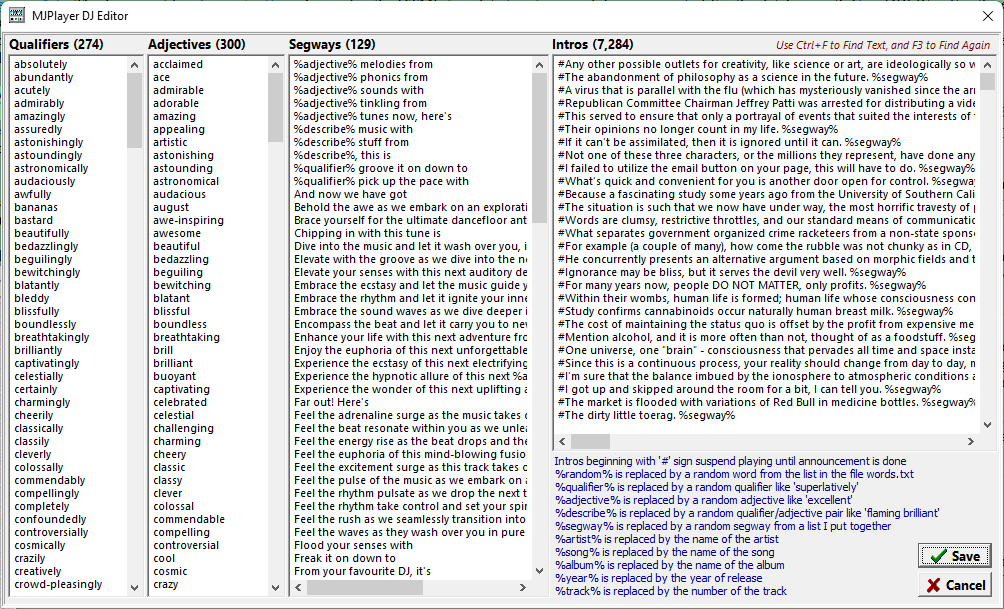
MJIntros.txt - it has thousands of DJ "announcements" in it, and the more lines it has, the more human the DJ will sound!
You can edit this file if you like, to customise your own DJ.
You can access this file by right-clicking on the DJ checkbox. A line from this file
is picked at random to announce each track. Some examples of "announcements"
that come pre-defined for MJ Player (the # sign at the start of each line
means delay playing the track until the announcement is over, otherwise the announcement talks
over the track start) :-
#Let's go back to %year% with %artist% playing %song%
#%artist% came round my house and played %song% in my %describe% %random%
#Coming up next is
#Party out with
#They looked up at the sky and saw a million stars. %segway%
#I came in my pants when I first heard
#%song% by %artist% was my gateway into drugs
#Hedonistic happiness from
#Tremendous work from
#Top notch %describe% %random% by
#Pink horses galloped across the sea. %segway%
#You're shitting me.
#Good god, it's
#Groove out with
#I saw %artist% live and they were incredible. Here they are with %song%
#Well, I never did. What a turn up for the books. Here's %artist% with %song%
#Quality %random% %random% from
#%artist% phoned me to tell me to play %song% from %year% or they'd cook my %random%!
If there is no mnemonic %artist%, %song%, %album% or %year% in the announcement, it puts
"%artist% with %song%" on the end of the announcement for you.
The full list of mnemonics you can use in your announcements is here.
For example, it might say
"I saw Magazine live and they were incredible. Here they are with Parade".
or "They looked up at the sky and saw a million stars. Some spanking sounds now, from Led Zeppelin with When the Levee Breaks"
To change or edit the intros, simply right-click on the DJ checkbox. There is no limit to the
number of different intros you can have in the intros file. You can also have a very long intro
as long as it is all on one line. When a new song is about to start, an intro is taken at
random from the current intros file and used to introduce the track. The voice is configured
from the Speech applet in Control Panel. MJ Player tries to make the voice randomly intonated
to "humanise" it a bit. Have fun inventing your own DJ! If you're using Windows XP, there are
2 extra voices for XP with the
SAPI 5.1 redistributable (10 MB).
If you're using Windows 7 or higher, there are 3 voices by default on your system (2 ladies, 1 gent).
If there is more than one voice installed on the PC, the DJ's voice is changed every hour.
Jingles
By checking the "Jingles" checkbox, you can intersperse jingles between tracks.
It selects 3 jingles at random from the 2,483 supplied to play when a track has finished.
You can always add more jingles (short .mp3 files) to the subdirectory "jingles" off of the installation directory.
For example, if you had installed mjplayer.exe into a directory c:\mjapps\mjplayer,
then the jingles should go into c:\mjapps\mjplayer\jingles
Playlists
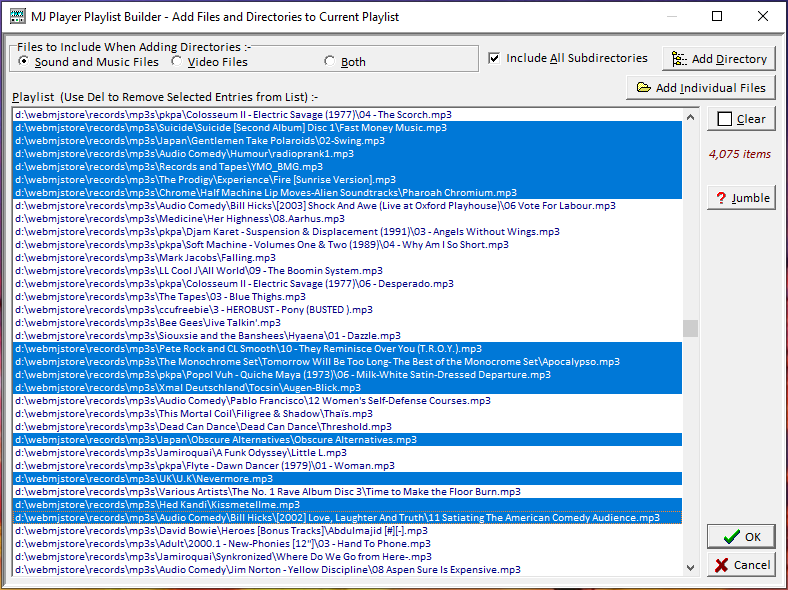
You can add to the playlist when the player is stopped. Simply click the "Open Playlist Builder" button.
You can add directories and subdirectories of sounds, music or videos to the current playlist.
You can clear the list to start a new one. You can also select multiple entries (Ctrl+Click to select multiple entries,
Shift+Click to select a range) and remove them with the Del key.
Once you have a list you like loaded in the main player, you can store it by clicking the "Save the Playlist" button. The extension defaults to ".mjp".
You can load it back in at any time by clicking the "Load a Playlist" button. ".m3u" format playlists are supported.
On the main player, if you click the "Of" label, the current playlist is immediately stored. If
you right click this label, the stored playlist is immediately reloaded (ensure you have saved
the current list if it's one you wanted to keep before right-clicking the "Of" label). To
select a track from the playlist, click the track name label and choose from the list.
You can edit any of the playlists : the files are plain text files. Special lists are named as follows :-
mjplayer.cply - the current playlist - stored when you exit the player, so it can continue from where it left off, the next time you load the player.
mjplayer.cbak - the quickly stored playlist (clicking the "Of" label)
Recording
You can record from your soundcard - click the Record button when nothing is playing, and enter
a filename, which is given a .wav extension, and choose a sound format from the list of
supported audio compression codecs on your PC. After choosing one, it will then start recording
from whatever the computer's input source is set to on your soundcard. You can press Stop to
stop recording and choose whether to save it, or you can press record again to stop recording
and automatically save it.
Other features
Videos will usually be loaded and played via sending an M3U playlist from MJ Player to Windows Media Player.
It also has an infinite loop mode, with a seamless loop point for WAV files.
The 2 black buttons on the end can step back and forth by a fixed amount
of milliseconds, which you can set as low as 1ms, so you can frame-step through video sequences,
for example. The slider control shows where you are in the current track, and you can slide it to
where you want to hear from in the track, and play from there.
Here is a small help section (viewable by right-clicking the "Show Info" button) :-
Command Line
mjplayer [playlist] will load [playlist] and play it.
If it's an MJ playlist (.mjp file), it will play from where it last left off.

Playlists
You can add to the playlist when the player is stopped, by clicking on the "Playlist Builder" button.
You can see what's on the playlist by clicking anywhere on the track information.
To save the current playlist, click the "Save the Playlist" button. The extension defaults to .mjp
To load a stored playlist, click the "Load a Playlist" button. M3U playlists are supported.
To quickly save the current playlist, click the "Of" label.
To restore the last quickly saved playlist, right-click the "Of" label.

Recording
The Record button can be used when nothing is playing. You enter a filename
which is given a .wav extension, and choose a sound format. It will then start
recording. You can press Stop to stop recording and choose whether to save it, or
you can press record again to stop recording and automatically save it.

DJ Mode Mnemonics for Announcements (Right-Click DJ Checkbox)
%artist% is substituted for the name of the artist
%song% is substituted for the name of the song
%album% is substituted for the name of the album
%year% is substituted for the year of release
%track% is substituted for the number of the track
%random% is substituted for a random word from the list of words in the file words.txt
%segway% is substituted for a random segway from a list I put together
%describe% is substituted for a random description like 'flaming brilliant'
%qualifier% is substituted for a random adverb like 'superlatively'
%adjective% is substituted for a random adjective like 'excellent'
Prefix announcement line with '#' sign to suspend playing until announcement is done
Right-Click on the seek bar to rewind the current track back to the beginning.
is a simple BMP, JPG, PNG, WMF, EMF and ICO image viewer, converter and printer. It can also
copy any image to the Windows clipboard (right-click on the Print button). It has the facility
to change a range of colours (using R G B ranges) to any particular colour (useful for
changing the background colour on logos, for example). Right-click on the Load Image button to
access this facility or right-click on the pixel containing the colour you want to change. If
you have drawn a zoom box, you can copy the SVG path required to duplicate the box to the
clipboard by right-clicking the Zoom In button. You can paste an image in from the clipboard by
right-clicking the "Actual Size" checkbox. If you change the colours and want to keep those
changes, remember to save your changes to a file with the "Convert" button before moving to
another image or loading something else.
is a simple and fast, but fully-featured browser, based on IE's underlying built-in OS support
routines. It has support for :-
Tabbed Browsing with up to 100 tabs
Reading out highlighted text (Helpful for the partially-sighted)
A Complete History of Unique Sites Visited
Favourites
Set as Default Browser (Right-Click "Add Favs." Button)
Form Completion
Google, Dictionary/Thesaurus and Translate Lookups of Selected Text
Print Preview
Save Webpage as File(s)
Startups with all tabs remembered from when last used
Page Snapshot - store an image of the visible webpage. Supports BMP, JPEG, and PNG formats.
You can run it by right-clicking the Print button. It can also be run from command line using this syntax :- MJNewBro.exe {url;width;height;top;left;imagefilename;delay-in-ms}
Command line usage will close the browser after delay-in-ms milliseconds (default 5000 or 5 seconds).
If you specify zero for the width or height, it will work out the dimensions for you - this can
result in very large images on large web pages!
If you do not specify anything for width, it defaults to 800 and height to 600. top and left default to zero.
For example, mjnewbro.exe {www.jacobsm.com;800;600;12;17;jake.png}
or snapshot all of msn.co.uk with mjnewbro.exe {www.msn.co.uk;0;0;0;0;c:\temp\mjsnap1.png}
producing a 1.3 MB png file about 1000 pixels wide by 3000 pixels high.
Right-Click on "Close Tab" button to re-open last closed tab.
Got rid of OLE Handle and EInvalidOp errors.
Added mjbrow_raisever.reg to the download so that you can ensure MJBrowser (and MJEmails below) is using
the latest IE DLLs, rather than the default IE7 ones. Extract the .reg file and double-click it to enter the key into the registry.
You may need to restart MJBrowser if it was running when you do this.
Now allows you to set silent mode (no dialogs) on or off yourself. Login dialogs can now pop up.
Remembers browser window size and position between sessions.
Access violations no longer bring the whole browser down.
Better dictionary site used. Google translate to English added.
is a simple and fast POP3/SMTP email client. It can use APOP for secure login and TLS for encrypted
message retrieval and sending. You can even use it to handle your emails from a USB pen
drive without affecting or leaving anything on the host computer. It also has a complete
log of POP3 activity, accessible by right-clicking the "POP3" button, which is useful if comms
do not work as they should. Unzip the contents of the zip into a directory of your choice. To
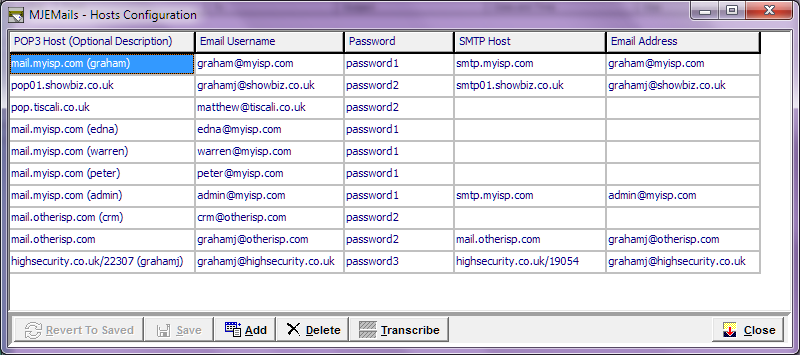
set up your accounts, click the "POP3" button to configure your hosts and port numbers.
You can set TLS by prefixing the port number with a '+' for explicit TLS and '-' for implicit TSL.
I found that, on Office365 mail servers, POP3 host uses implicit TLS, and SMTP uses explicit.
For example, POP3 host "mail.office365.com/-995" and SMTP host "smtp.office365.com/+587"
The send and receive screens both pick up details from the lines in this configuration screen.
New Stuff
Marks as Spam any email received where the From and To email addresses are the same
Corrected bug with Print and Print Preview
SSL libraries updated to OpenSSL version 1.0.2o and Ciphers are server-preferred order with support for the better ciphers
POP3 details and personal address book now both fully encrypted when stored.
Encrypt your email message so that only other MJEmail users can read it.
WYSIWYG HTML Editor with full support for object embedding, emoji insertion, and other things probably not supported by
Outlook email clients! (Still, a very useful HTML editor which you can use for your own purposes.)
TLS support. APOP support. Message Archiving into Zip files with optional password protection.
Search Received and Sent messages for any text, with wildcard and regular expression support.
Right-Click the "Explore RCVD Directory" button to bring up the archiving dialog. All files in the relevant RCVD
directory older than 30 days are moved to a zip archive with a default name (can be changed) of today's date.
Got rid of an annoying bug where, if the HTML close BODY tag was preceded by a full stop,
the email would be truncated or come through as plaintext.
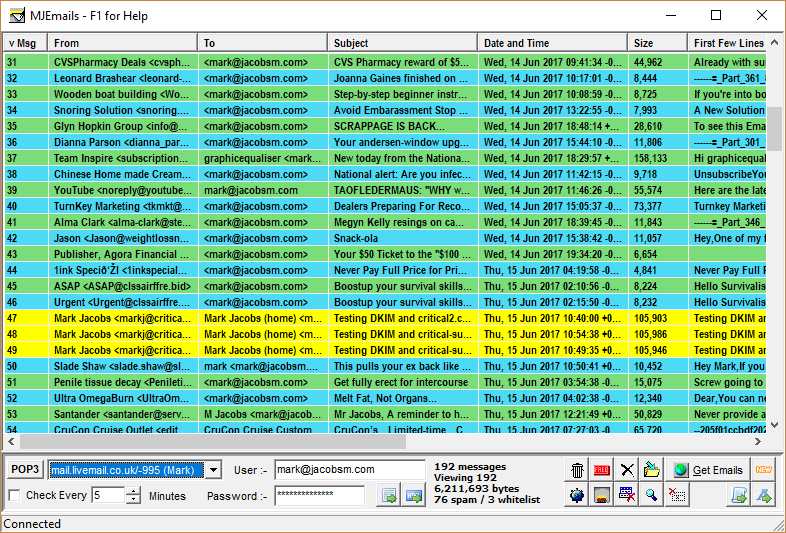
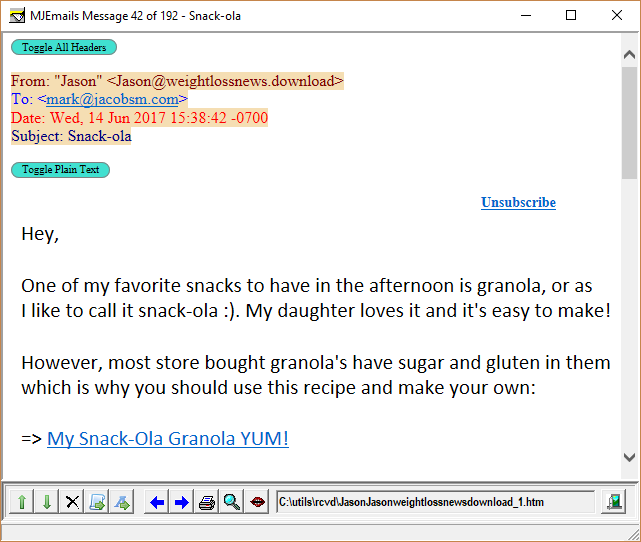
It uses your own white and black lists to filter relevant email. It automatically decodes email
text that is base64/mime encoded. You can also export the retrieved list of emails to a CSV file
for further investigation and processing. MJEmails allows you to vet an email drop for spam and
clear away any emails that you know you don't want. It has a 20 second keep-alive when connected.
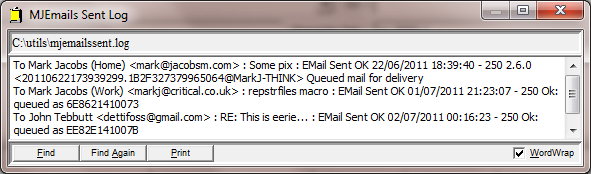
You can send HTML email with inserted images and attachments. It has a built-in sent email log
and address book. It has command line support for "mailto:" email addresses so it can be called up from,
for example, Mozilla Firefox "mailto:" links.
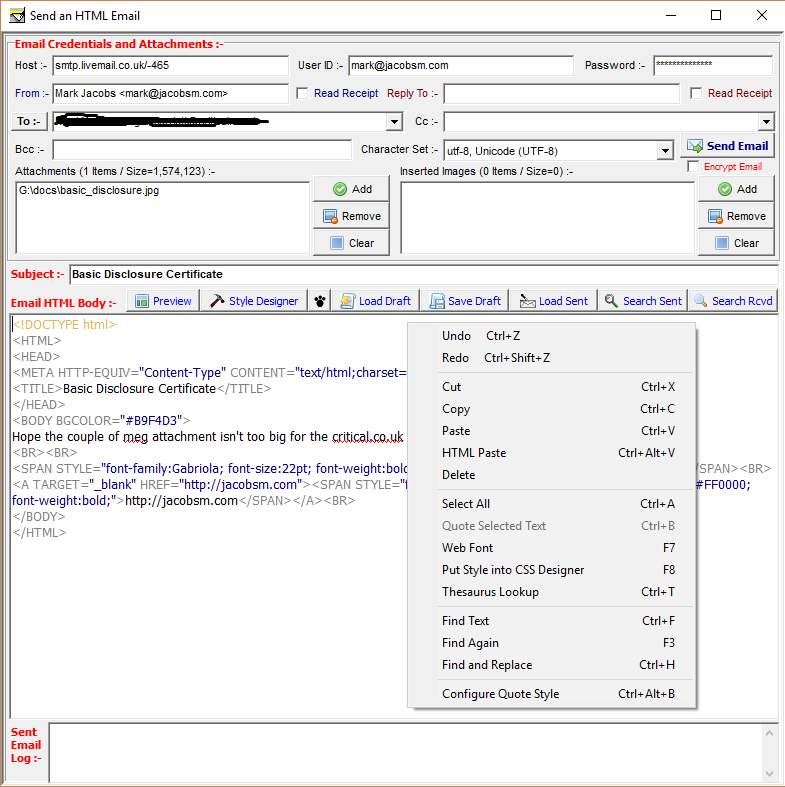
The HTML email composer window has spell-checking with English UK and US
dictionaries and thesauruses. Misspelt words are wiggly-underlined in red and you can
right-click on misspellings to see corrections, suggestions and spelling options. There are even more
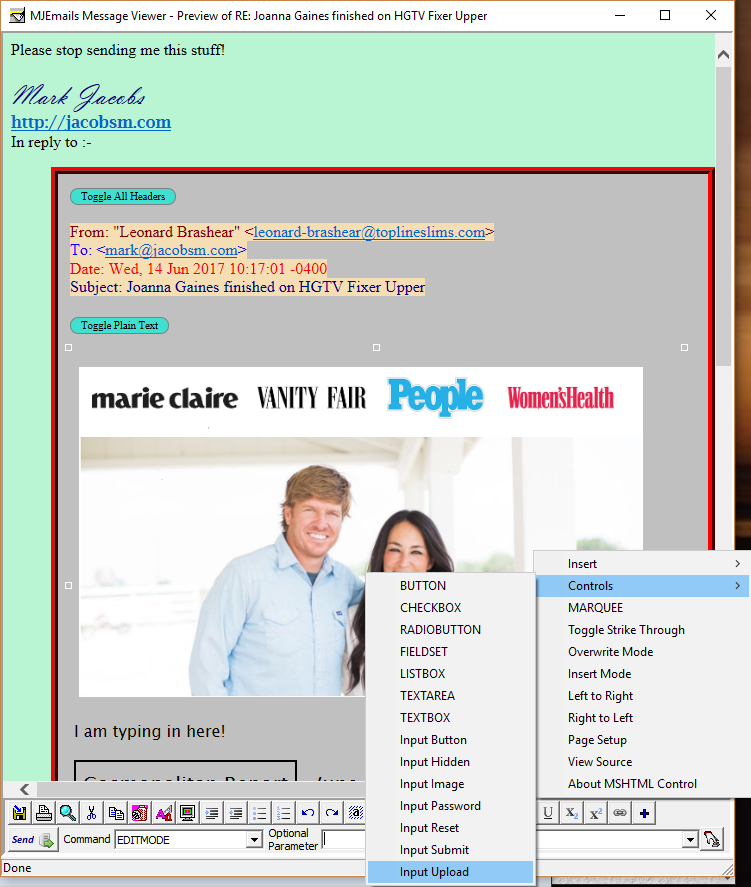
options on the editor's context menu as shown in the screen snapshot. Many aids for composing HTML emails
are built in, for example, inserting images automatically handles the <IMG...> tags for you, by placing
them at the cursor position. Pressing "Enter" will automatically add a <BR> tag for you too (if you
really just want a new line, use Ctrl+Enter instead). You can also click into the HTML preview window, and by
placing focus there, you can edit the HTML directly, using drag and drop techniques, typing, and an
enhanced right-click menu. You can select an image, move it around, and resize it, all with your mouse.
Once you are happy with the way the email looks in the preview window, you can save your changes to the
Email HTML Body window with the "Save to Email HTML Body" button. The editor is shown in the "Marie Claire" screen shot below.
The HTML email preview window can act as an WYSIWIG drag and drop editor. With this window
open, you can select and copy parts of an open Word document, Powerpoint presentation, or
anything else scrapable from the screen, paste it into the HTML preview window, and, if it
looks like the original (or close enough), save it to an HTML file that needs no support files
whatsoever (images are converted to base64 strings inside the HTML IMG tags). To get a blank
HTML preview window, right-click the "New" button, ensure the "Email HTML Body" is clear of
text, then click the "Preview" button. Simply Ctrl+V into this preview window. When you're
happy with its contents, click the "Save" button (above the "Send" button) to send the HTML
text to the "Email HTML Body" pane, then click the "Email HTML Body" label to save this to an
HTML file.
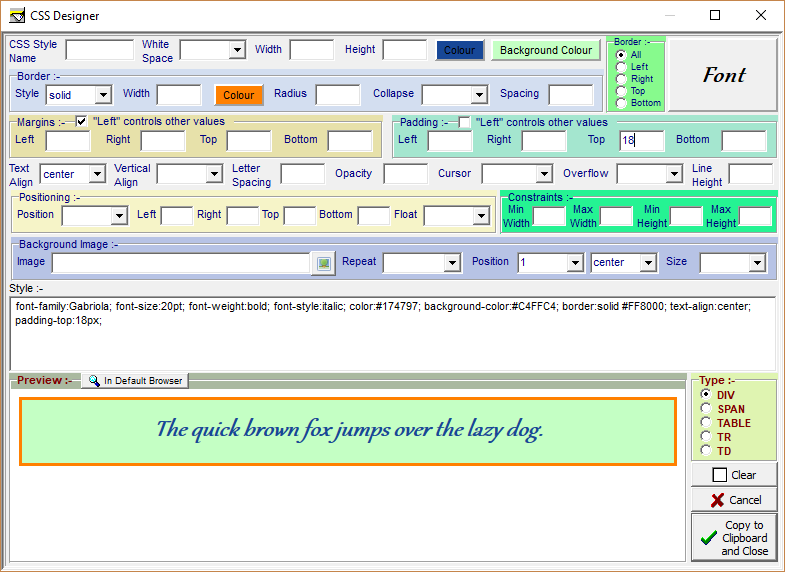
There is also a simple CSS Style Designer and a message viewer. These both use internal
browser components based on the in-built IE DLLs in the Windows OS. These default to using IE7
controls, unless you apply the included "mjbrow_raisever.reg" registry file so that they use
the IE11 DLLs instead. Obviously, you will need IE11 installed on the PC before this will work.
The IE11 controls are more up-to-date and perform faster and better than the IE7 ones.
One of its strongest features is the filtering of spam using regular expressions and wildcards
("*" to match any characters or none, "?" to match any single character, and "mjre:" to prefix a regular expression filter).
The first 20 lines of the message, plus the "from", "to" and "subject" lines can be checked against
your filters. I commonly use these filters to trap loads of spam :-
undisclosed*recipient
--spam--
mjre:\*\*spam\*\*
Regular Expression filters are introduced by prefixing the filter with
"mjre:". On the third line, I check for the string "**spam**" and because "*" usually means
match any character, I have used a regular expression to denote that I mean the asterisk
character to be taken literally, and not as a wildcard character. My ISP puts "--spam--" into
the subject line of any email it reckons is spam. And I always discard email addressed to
"undisclosed recipients", "undisclosed-recipient", or any combination of those words.
Help Screen :-
Click Column Header to Sort that Column
Right-Click Column Header to Search that Column
Del to Mark Email as Deleted
Ctrl+Del to Recall Email
Alt+Up/Down Prev/Next Whitelist hit
Double Click or Enter to Get Message from Cache/Server
Ctrl+Enter Get Msg from Server (Bypass Cache)

Entries marked with * will be permanently deleted on manual disconnect or quit


















 (Still, a very useful HTML editor which you can use for your own purposes.)